Grid-first planning

Using a pixel art generator with grid free of guesswork

A visible grid helps you plan shapes one square at a time. Use this guide to decide whether a grid-based pixel art generator suits your idea, then check its actual controls and access terms before committing to a project.

Free to start · no signup

Choose your route

A grid-first entry point versus a general generator

A general pixel art generator starts with the scene you want; a grid-first approach starts with where each square should go. A visible grid is most useful when placement matters more than a polished first impression.

Grid advantages

Three things a visible grid helps you do

These are reasons to seek a grid view, not claims that every pixel art generator provides identical editing controls.

  1. 1

    Count the space

    Treat each square as a position in the composition. Counting spaces makes it easier to reserve room for a character, its outline, and the background before fine details crowd them out.

  2. 2

    Check the silhouette

    Look at the shape formed by filled squares before worrying about texture. If a fox, flower, or sword is hard to recognize at this stage, extra colors are unlikely to rescue it.

  3. 3

    Repeat shapes deliberately

    Use the visible rows and columns to compare spacing on both sides of an object. The grid helps you spot uneven outlines, misplaced highlights, and accidental gaps during manual review.

Ways to begin

How to start with a grid in mind

Choose a small subject, decide what must remain recognizable, and test the result at its intended display size. These starting points lead to different kinds of pixel art generator projects.

Photo-based creator

You have a reference picture but do not know which details to keep. Identify its main silhouette and a few dominant colors before considering a square-by-square redraw.

A simpler reference can guide your first grid sketch without forcing every photographic detail into it.
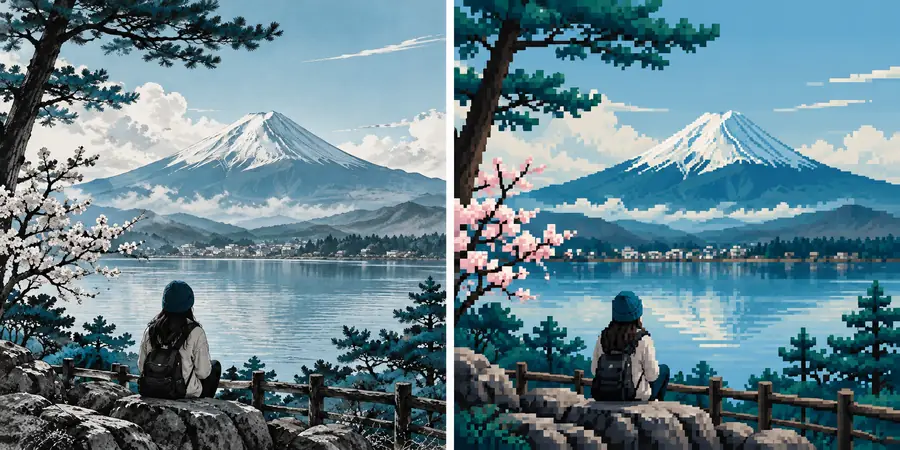
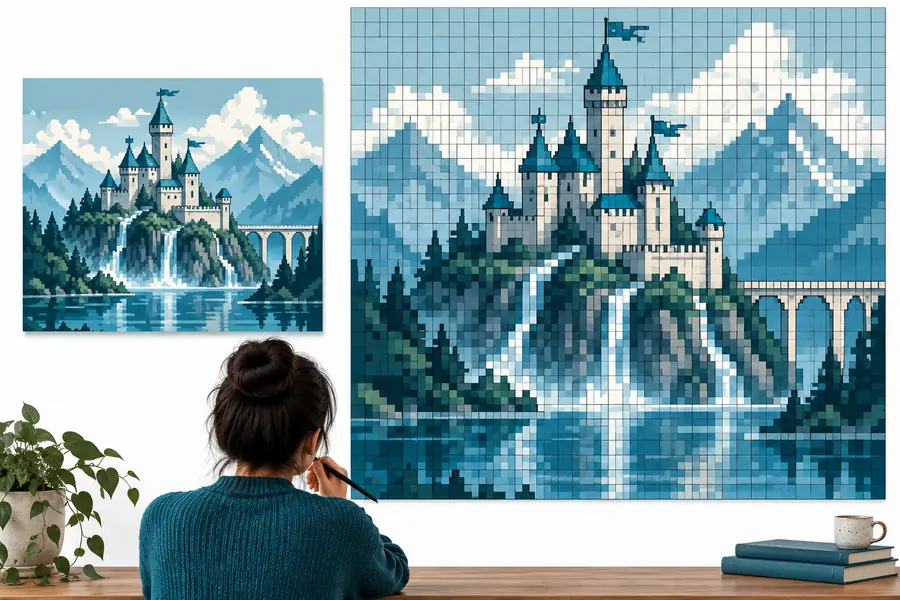
image to pixel art

Small-icon designer

You need an icon that reads clearly at a specific small size. Plan the outer shape first, then leave enough space for the one feature that identifies it.

Reviewing a fixed canvas can reveal whether thin outlines or tiny features disappear.

image to pixel art 32x32

First-time pixel artist

You want to understand why a generated design looks crowded. Sketch its broad shapes on paper or a grid, then remove details that interrupt the outline.

A deliberate redraw gives you a clearer basis for judging a pixel art generator result.

how to make your own pixel art

Know the difference

Limits of a grid-based preview

A grid can help you judge placement, but it cannot guarantee a clean outline, an editable file, or the canvas controls you need. Inspect those separately before relying on any pixel art generator.

Illustrative Mount Fuji scene shown beside a pixel-style interpretation
Reference and interpretation
Separate pixel-style Mount Fuji example
Pixel-style example

These are separate illustrative images, not a documented before-and-after conversion. A pixel-style appearance does not establish that the image was made on an editable grid.

Reference and interpretationPixel-style example

Keep the grid in perspective

Start with a subject you can describe in one sentence. After exploring the pixel art generator, check whether the available view, editing options, and access terms fit the work you actually want to do; a visible grid alone does not settle those questions.

Try a small scene, then inspect the result

  • Begin with a recognizable silhouette
  • Check details at the intended display size
  • Verify available controls before a larger project
Create pixel art

Grid questions

FAQ about grid-based pixel art

Look for a clearly visible square layout and a way to judge whether your design reads at the size you need. Check the tool's current access terms, editing options, and output choices directly; a search phrase does not establish which features are available without payment.

No. An image can look as though it was drawn on a grid while still being delivered as a single, flattened picture. If you need to change individual squares later, verify that the specific tool supports that workflow before you start.

Yes, as a planning aid: it helps you decide which broad shapes survive when detail is reduced. A visible grid does not, by itself, convert a photo or choose the right colors. Compare the subject's silhouette with the result rather than trying to preserve every feature.

Start small enough to inspect the whole composition comfortably, but large enough for its defining feature to remain recognizable. Test a rough silhouette at the size where you expect to use it, then adjust your plan if the subject is unclear. The best dimensions depend on the project, not on a universal grid setting.

Start creating
Start creating